
Second in our series on CalDAV servers: after Baïkal, we looked at Nextcloud – by some distance the most common server our users bring along.
What Nextcloud is
Nextcloud is a self-hosted collaboration platform: files, calendars, contacts, tasks and a good deal more, all under your own control. Its CalDAV implementation is mature and complete, including the VJOURNAL component that spectacled Notes and Journals depend on – which is not something every CalDAV server can say. You can run it yourself, or use one of the many managed Nextcloud hosts.
The short version: it works
We tested all three apps – Spectacled Journals, Spectacled Notes and Spectacled Tasks – against Nextcloud 34.0.3. Account setup and discovery, creating and deleting collections, and creating, editing, moving and deleting entries all behaved as expected.
| App | Status | Notes |
|---|---|---|
| Spectacled Journals | ✅ Works | No issues found |
| Spectacled Notes | ✅ Works | No issues found |
| Spectacled Tasks | ✅ Works | No issues found |
Unlike Baïkal, there is nothing to change on the server side: Nextcloud accepts the Basic authentication that spectacled uses, over HTTPS, out of the box. There is no authentication setting to hunt down.
The one thing to know: app passwords
If you have two-factor authentication enabled on your Nextcloud account, your normal password will be rejected when you add the account in spectacled – and the error will simply look like a wrong password. This confuses a lot of people, and it is not a bug in either program.
The reason is straightforward. A second factor is something you type into a web login form. CalDAV clients like spectacled do not have a login form; they send your username and password with every request in the background. Nextcloud therefore refuses the account password for these connections entirely and expects an app password instead.
What an app password actually is
An app password is a long, randomly generated password that Nextcloud creates for one specific application. It works only for connections like this one, it exists alongside your real password rather than replacing it, and you can revoke it on its own at any time.
That makes it worth creating even if you do not use two-factor authentication:
- Your real account password never goes into the app, or onto your phone.
- If you lose the device, you revoke that one password – your account is untouched and your other devices keep working.
- Changing your account password later does not break your sync.
Creating one
In Nextcloud’s web interface, open your profile menu at the top right and go to Settings → Security → Devices & sessions. At the bottom of that section there is a field for an app name — enter something recognisable such as Spectacled Notes — and select Create new app password.
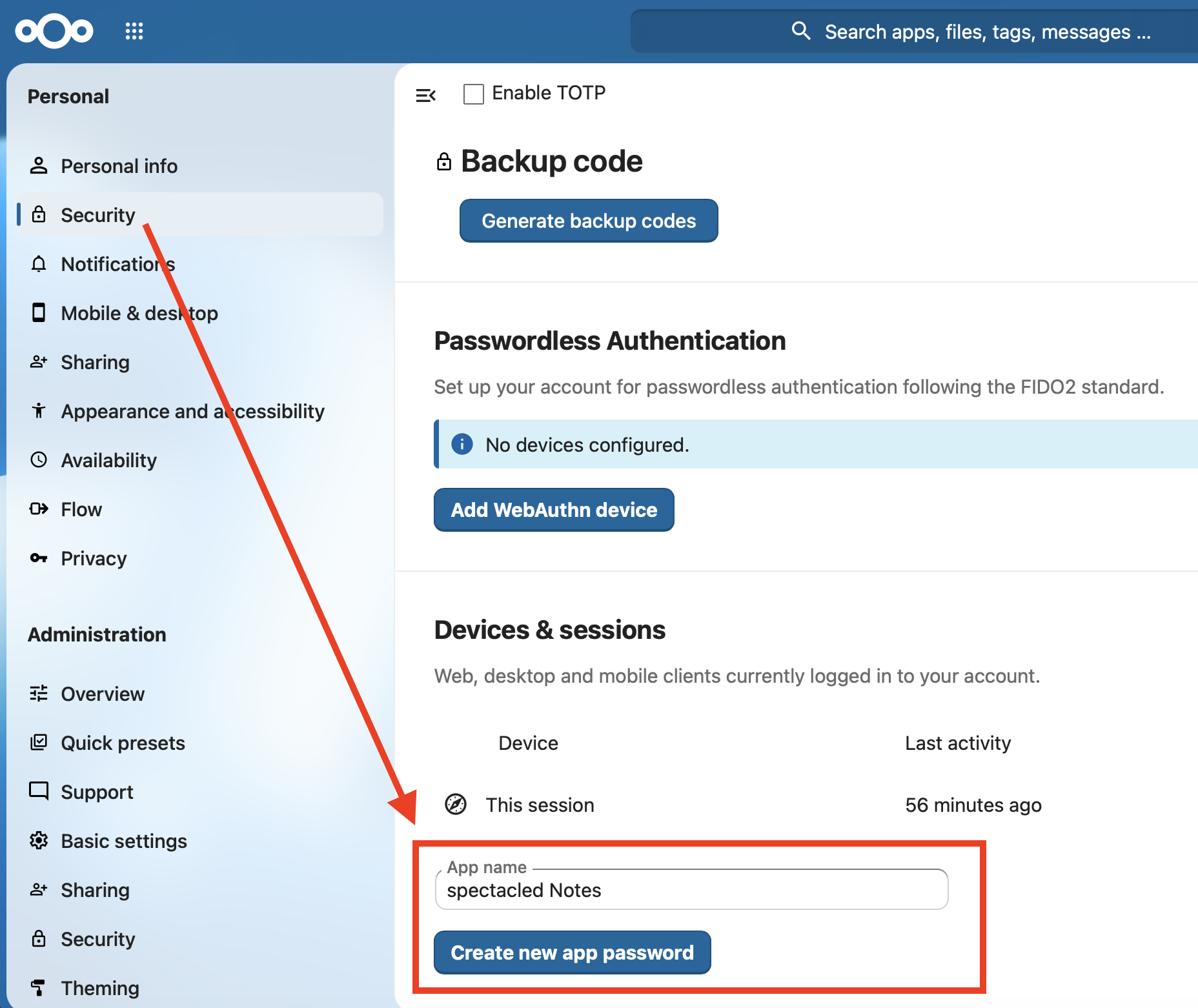
Nextcloud then shows the generated password once. Copy it now — it cannot be displayed again afterwards, and if you lose it you simply create another one.
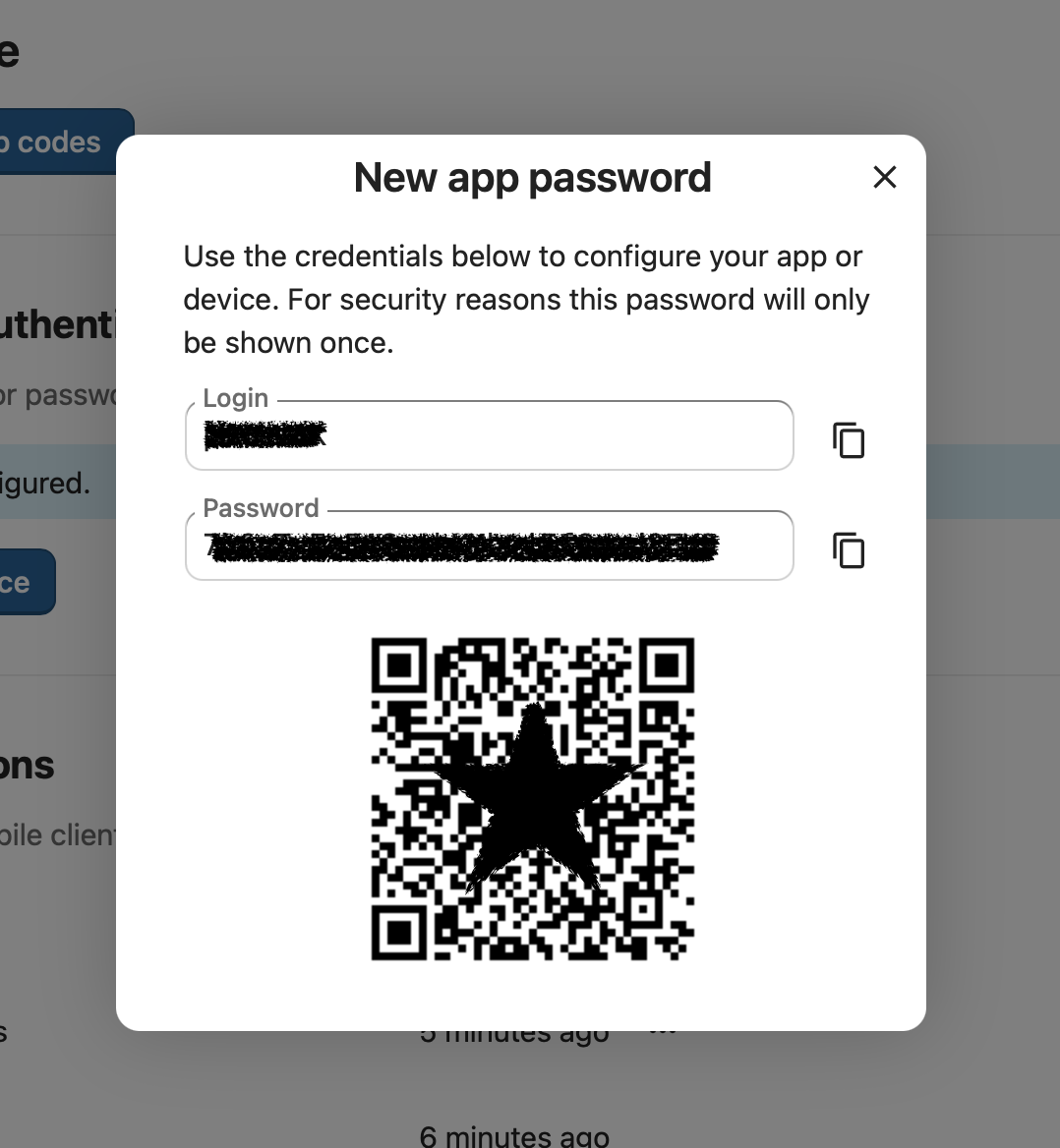
Paste that password into Spectacled’s password field instead of your usual one. That’s the whole procedure.
One password per app
Spectacled Journals, Notes and Tasks are three separate applications that connect to your server independently. You can give each one its own app password, named accordingly. It takes a minute longer and gives you a tidy list under Devices & sessions – where you can see exactly what is connected and disconnect any single one of them with the trash icon, without disturbing the rest.
Connecting your account
You usually do not need to know your CalDAV URL at all. Leave the Server field empty and enter your full address as the username — for you@example.com, Spectacled derives https://example.com and locates the CalDAV endpoint from there.
If automatic detection does not work for your host, the ⋮ menu at the end of the Server field offers ready-made addresses for the providers Spectacled knows about, and you can always type one by hand. For Nextcloud the address follows a fixed pattern: https://your-server/remote.php/dav.
After login, spectacled asks the server what it supports and lists the folders it finds. Only folders that can actually hold your entries appear – Journals and Notes store their entries as VJOURNAL, Tasks uses VTODO, so a calendar created for events only is filtered out. That is expected behaviour, not a failure. If nothing suitable appears, create a new collection; it requests the right component set itself.
Managed Nextcloud hosting counts too
Everything above applies equally to hosted Nextcloud services, several of which Spectacled lists in its provider picker, for example Murena Workspace. They are Nextcloud underneath, they support journals and tasks, and they use the same app-password mechanism – the setting sits in the same place in every one of them.
A note for web app users
The browser version is a special case, and it is not Nextcloud’s fault: browsers enforce CORS, and CalDAV servers generally do not send the headers a browser needs for cross-origin WebDAV requests. The web app therefore talks to your server through a small CORS proxy, which you should self-host – it terminates TLS and would otherwise let a third party see your credentials. The Android, iOS and desktop apps contact Nextcloud directly and need none of this.
What won’t work: the Nextcloud Notes app
There is one incompatibility worth being explicit about, because it catches people out regularly – and it is not something either side can fix with a setting.
Nextcloud’s own Notes app does not use CalDAV. It stores each note as a Markdown file in your Nextcloud Files, in a folder called Notes, and syncs through its own interface. Spectacled Notes stores entries as VJOURNAL components in a CalDAV collection, exactly as the iCalendar standard defines them.
These are two entirely separate storage systems that happen to share a name. The consequence is simple, and it goes both ways:
- Notes you create in Spectacled Notes will not appear in the Nextcloud Notes app.
- Notes you create in the Nextcloud Notes app will not appear in Spectacled Notes – they will not even show up as a folder you could select, because they are files, not calendar data.
This is exactly the same situation jtx Board users have been running into for years, and for exactly the same reason. Nothing is broken, nothing is misconfigured, and no version update will change it: an app that reads CalDAV cannot see files, and an app that reads files cannot see CalDAV.
Here is how the pieces actually line up:
| Nextcloud app | Stores data as | Spectacled |
|---|---|---|
| Tasks | CalDAV — VTODO | ✅ Spectacled Tasks — same data, both directions |
| Calendar | CalDAV — VEVENT | Not applicable — Spectacled does not handle events |
| Notes | Markdown files in Files | ❌ Not compatible — different storage entirely |
| (no Nextcloud equivalent) | CalDAV — VJOURNAL | Spectacled Notes and Journals |
The comparison with Tasks is the instructive one. Nextcloud’s Tasks app is built on CalDAV, so Spectacled Tasks and Nextcloud Tasks work on the same data: add a task in one, it appears in the other. Notes simply took a different design decision.
One further consequence to expect: Nextcloud itself has no built-in app that displays VJOURNAL, so your spectacled Notes and Journal entries will not show up anywhere in the standard Nextcloud web interface. They are on your server, safe, and syncing to every device you connect – Nextcloud simply ships nothing that renders them. The reliable way to read them is a VJOURNAL-capable client: Spectacled itself, or jtx Board on Android.
There is at least one community-built Nextcloud app that sets out to display journal entries in the web interface. We have not tested it yet, so we cannot say how well it works, and as a small third-party project its long-term maintenance is an open question. If you try it, treat it as a bonus rather than something to depend on – and please tell us how you get on.
If you already have notes in the Nextcloud Notes app and want them in Spectacled, there is no automatic migration – the formats have nothing in common. Copying the text across by hand is the only route, which is realistic for a handful of notes and painful for hundreds. Worth knowing before you commit either way.
Verdict
As a CalDAV backend, Nextcloud is the smoothest server we have tested with Spectacled so far. There is nothing to configure and VJOURNAL support is complete – so all three apps sync reliably in both directions. Create an app password, paste it in, and you are running.
The one thing to be clear-eyed about is scope. Spectacled and Nextcloud Tasks share the same data, but Nextcloud’s Notes app is a separate world, and nothing in the Nextcloud web interface will show you your spectacled notes and journals. If you are looking for a server that keeps your entries safe, synced and portable across all your devices, Nextcloud does that job very well. If you were hoping to read the same notes in Nextcloud’s own web apps, that is not what this combination gives you.
Tested Spectacled against a server we haven’t covered yet? Let us know – reports from users are how this series grows.
Leave a Reply